
Optimove’s priority and exclusion mechanism is the linchpin of orchestrating your marketing campaigns.
As a brand, you have many campaigns scheduled based on trigger events (e.g., abandoned cart), lifecycle stages (e.g., anniversary), or special promotions coming up. However, you want to make sure your clients aren't receiving all of them on the same day or even week. This is why our sophisticated priority and exclusion capabilities ensure customers receive only the most relevant campaigns, maximizing your revenue.
To do this, you want to set up priority and exclusion rules that are optimal for your business. But when you’re running hundreds of campaigns at once, it can be challenging to make these decisions without understanding how your prioritization rules are performing.
With the new Eligibility and Exclusion graph, you can see how many eligible targeted customers for a campaign were excluded, why they were excluded, and by which campaign. This provides an intuitive way to gain insights into how your set-up prioritization rules are executed, allowing you to determine which campaigns should be prioritized based on their business benefits.
How to Use
- From the navigation bar, go to Mission Control
- From the campaign menu, choose a campaign to analyze and select "Eligibility and Exclusion"
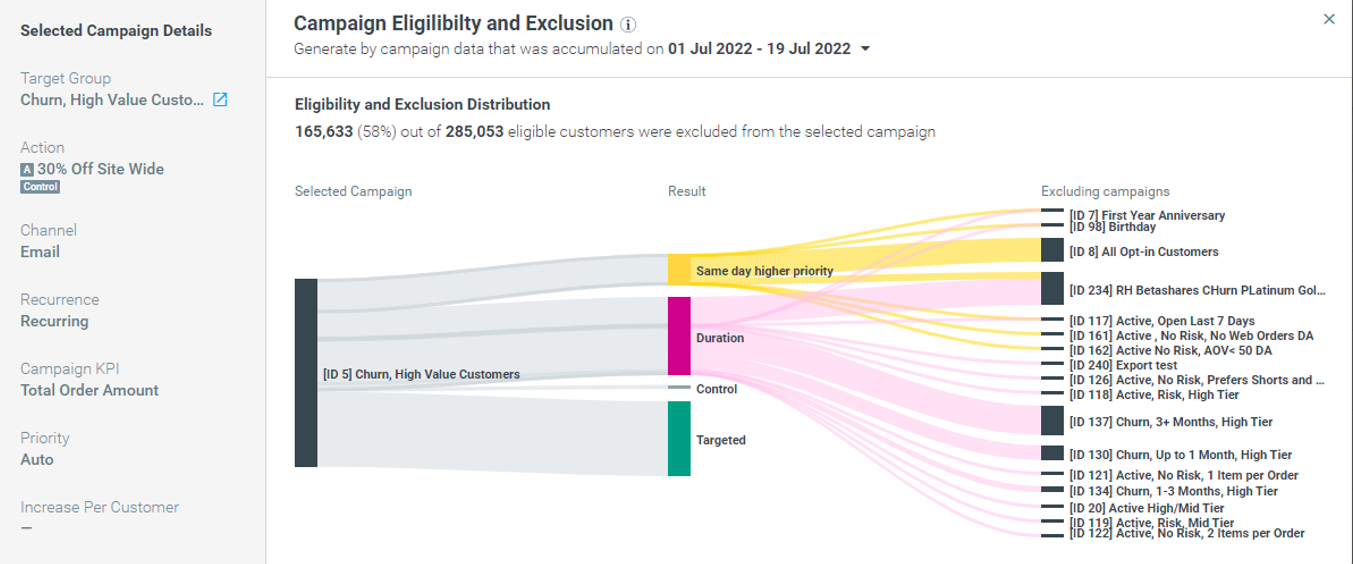
- The Selected Campaign Details option on the left outlines all general information on the campaign, from campaign KPI to Increase Per Customer.
- To view the number of customers excluded, hover over each priority rule under the Results section
How to Read the Graph
Each section outlines different campaign details:
- The first section of the graph under Selected Campaigns represents all of the campaign’s eligible customers, meaning the entire size of your Target Group for the selected campaign.
- The Result section outlines the journey of each customer. This specifies whether the customer was targeted and therefore received the campaign, was part of the Control group, or was excluded and why. The complete list of exclusion reasons can be found below.
- Once you have identified the reasons for exclusion, you can drill down even further and identify the specific campaigns that excluded customers in the Excluding Campaigns section. For example, you may discover that a birthday campaign “took” eligible customers because it had a higher priority.
Customers may be excluded due to:
- Same-day higher priority: Customers eligible to receive more than one campaign on the same day will only be targeted by the campaign with higher priority.
- Duration: Customers who are locked in the duration period of a campaign that is already running. For example, if you define the duration period of a campaign as 3 days, customers will not receive the new campaign within these 3 days since the campaign was executed.
- Same campaign duration: Customers that are eligible to receive a recurring campaign are excluded as the campaign occurrence overlaps with the duration period of the campaign's previous occurrence. For example, you can run a recurring campaign every three days that targets customers who made a deposit equal to or larger than $100 and set the duration of this campaign to 5 days. If a customer makes two $100 deposits three days apart, they will only receive the first occurrence of the campaign, as they are locked in the 5-day duration period.
- Always exclude: Specific groups of customers that are set never to receive a campaign, e.g., customers that have opted out of receiving marketing communications.
- Re-evaluate Target Group: Customers that have been removed from a Target Group before campaign execution due to no longer matching their Target Group criteria.
- Conditional execution: customers who were not eligible for a specific promotion will be excluded from the campaign.
In the example above, of the 285,053 customers that were eligible to receive the campaign based on their Target Group, 165,633 were excluded from the selected campaign. Multiple campaigns excluded these customers due to same-day higher priority and duration.
Now, you can examine the campaigns that excluded a significant number of customers. For example, you can look into the campaign for All Opt-In Customers, which has a higher priority, and see whether this campaign is performing well.
Once you have identified why eligible customers were excluded, you can alter your campaign rules if you find that it doesn’t provide value to your business. For example, you can change the priority level of a Target Group or reduce the duration of a campaign
Excluding Campaigns Table
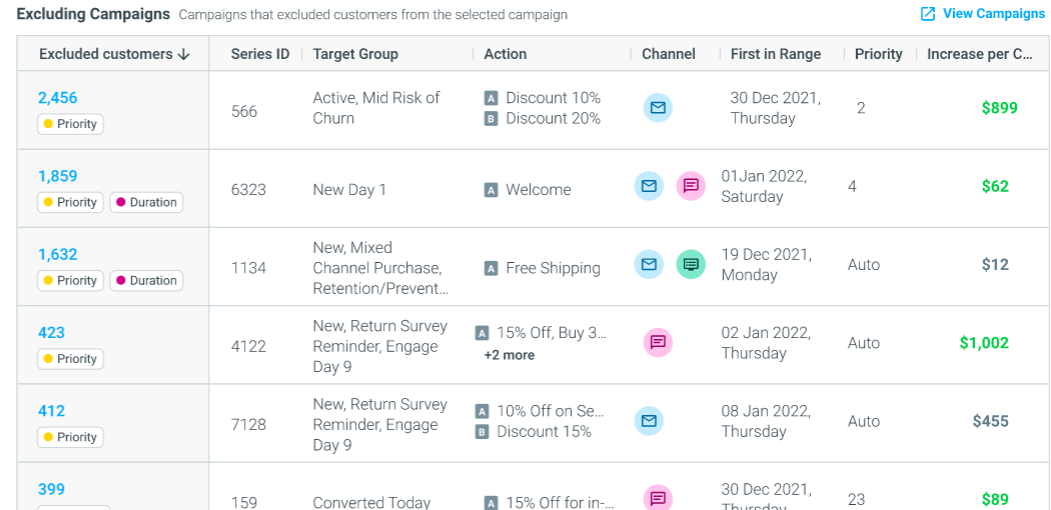
For a deeper analysis, the Excluding Campaigns table, located below the graph, provides a detailed breakdown of each excluding campaign.
This table helps you identify campaigns that excluded a large number of customers, view the priority level of each campaign, and assess the monetary impact of each campaign to optimize your priority setup.
For example, suppose you see a campaign that has excluded a significant number of customers and has a low Increase per Customer compared to the original campaign. In that case, it may not be beneficial for your business. Using this insight, you can then lower the excluded campaign's priority level.
|| Please note
For campaigns that excluded customers because of duration, the First in Range column can contain a date that is before the range of the original campaign. This means a campaign was executed before the original campaign, and its duration period overlaps with the execution date of the original campaign.
Over Time Graph
Your Eligibility & Exclusion setup can change daily for several reasons, such as a change in the Target Group size or a change in your prioritization rules. To identify changes and track trends in your Eligibility & Exclusion setup, you can analyze your campaigns using the Over Time Graph.
You can find the graph by selecting ‘Over Time’ in the top right-hand corner.
How to Read the Graph
- Each bar represents an occurrence of your selected campaign and all its eligible customers
- Within each bar is the distribution of how many eligible customers were targeted, excluded, or part of a control group
- Hover over each bar to discover the exact number of customers that fall into each category.
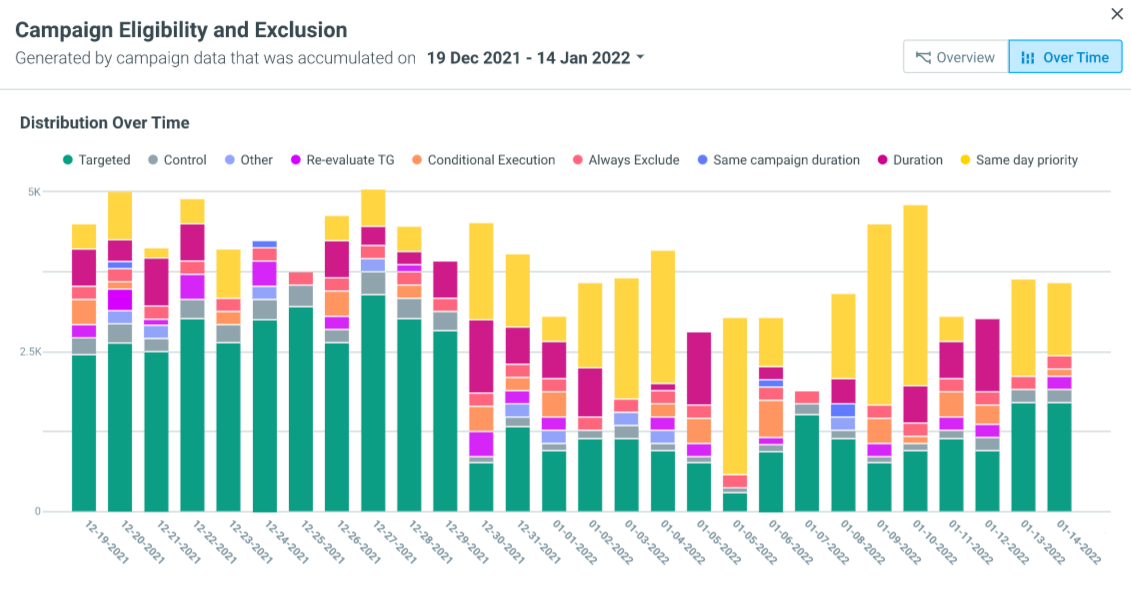
Using the Over Time Graph, you can uncover insights to help you optimize your campaigns. For example, by scanning the graph, you can identify drops in the Target Group size.
In the example above, on 01-07-2022 the total number of customers is significantly lower than the other occurrences. This means a large chunk of customers did not meet the Target Group criteria. Using this information, you can examine the Target Group and its criteria to ensure the relevant customers are being targeted.
Additionally, the graph can help you identify a significant change in the number of excluded customers.
In the example above, on 12-30-2021, you can see a significant drop in the number of targeted customers compared to other occurrences. Once you have identified this, you can analyze the specific occurrence in Mission Control to see which campaigns excluded eligible customers and whether they benefited your business compared to the original campaign.
FAQs
How does priority and exclusion work?
Your prioritization rules are linked to target groups. Each Target Group for a campaign has a priority number. This means for customers that are part of two separate target groups and both have campaigns scheduled for the same day, the priority number instructs Optimove which campaign a Target Group should receive.
To understand more about our priority and exclusion mechanism, read here.
How do I set up my priority and exclusion rules?
Once you have set up your campaigns, on the Manage Target Groups page, you can select Prioritize to find the Priority View. Here you can decide which target groups take precedence upon campaign execution.
For more details, read here.
What is the difference between manual priority and auto priority?
For manual priority campaigns, you set up the order of prioritization one by one for each Target Group. But when you have multiple campaigns running, Optimove can save you time with auto-priority.
Optimove leverages your customer data to determine which campaigns should be prioritized. However, your manual priority campaigns will always take precedence over auto-priority campaigns.
To learn more about Optimove’s auto-priority mechanism, read here.
Can I set up prioritization rules for triggered campaigns?
The Target Group's priority sets the priority of a triggered campaign. All triggered campaigns have exclusion turned on by default; however, you can change this to include all if required.
Priority and exclusion rules for triggered and scheduled campaigns are managed separately. So, your exclusion rules of triggered campaigns won't affect your scheduled campaigns.
To understand more about priority and exclusion for triggered campaigns, read here.
Many of my customers were locked in during the campaign with lower priority. How and why is this beneficial for my business?
Imagine the first campaign is called A and has a duration that overlaps with the start of the second campaign, which is called B. The reason customers who are in campaign B would be excluded from it is that they are locked into campaign A, and you, as a marketer, have decided to exclude customers from campaign B if they are locked in a campaign that is still within its duration period.
This could result in a customer not receiving a higher-priority campaign; however, this doesn’t necessarily mean customers are missing out on a higher-performing campaign. The duration exclusion rule ensures customers do not receive too many campaigns at once. This is to prevent customers from feeling as though they are being spammed and ultimately responding poorly to your marketing communications. Therefore, if this campaign also targeted the customers during the duration period, it may not yield the positive results that were expected.
What are the benefits of excluding eligible customers by re-evaluating the Target Group capability?
The re-evaluate functionality removes customers who no longer fit the criteria of the Target Group, making sure only relevant customers receive your campaign. This mechanism helps to recalculate which customers in the Target Group still fit the requirements before campaign execution, as changes may occur in your target groups between the batch data process and campaign execution.
For instance, if the campaign targets long-time non-purchasers with a highly attractive promotional offer, and a customer makes a purchase on the morning the campaign is set to launch, they will be excluded.
I noticed a campaign that excluded customers in an auto-priority campaign, yet it performed worse than the original campaign. Why was this campaign given higher priority?
Optimove’s auto-priority mechanism is based on the historic performance of the whole customer journey of a customer for each campaign they are eligible for. Over time, customer responses to campaigns can vary, even to the point where a previously thought “better” campaign performs worse than a previously thought “worse” campaign.
In this scenario, Optimove would readjust the priorities between the campaigns. If you uncover a campaign with a lower priority that is performing better than a higher priority campaign, you are looking at the nexus point of that change. Therefore, when looking at the bigger picture, this contributes to creating an accurate prioritization setup for your campaigns.
Keep in mind that if you were using manual priority, you would need to uncover this behavior change manually and implement the changes manually across all your campaigns, or these insights could go unseen. It should also be noted that your manual priority campaigns will always be prioritized over auto-priority campaigns.